





This is a guide that shows how to install Monta on your charge point. If you want to connect your charge point to your Monta account, please follow the steps in the end of the guide.
Please note that when you connect your charge point to Monta, we become the operator of the charge point. This means that you need to use Monta to control the charging process.
1. Download the Sync Energy App
Begin by getting the Sync Energy App on your device.
2. Power on the charge point
Turn the charge point on and the light indicator will glow in yellow. Then open the Sync Energy app.
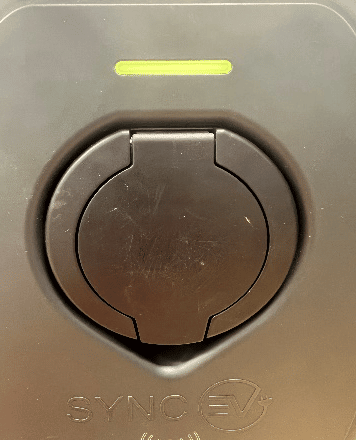
3. Connect to the charge point via Bluetooth
Connect to the charge point using Bluetooth. Click Add New Device → EV Chargerand select the charge point.
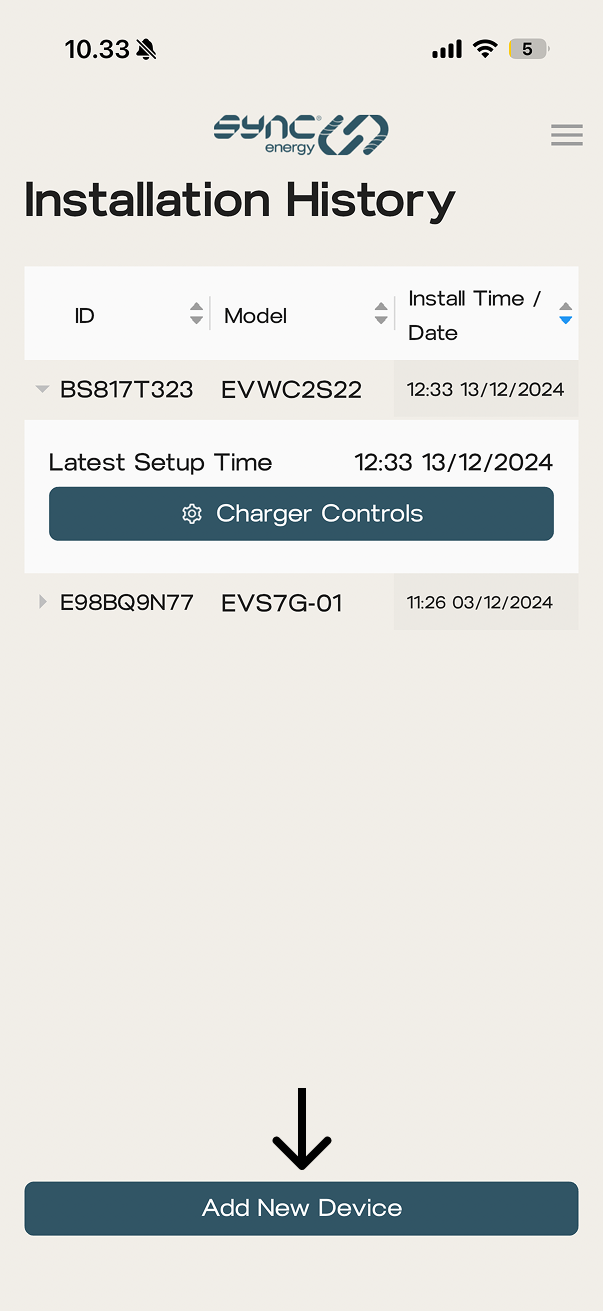
Use the default password
The default password is: 12345678 It is recommended to change the password and keep a note of the new password as you will need it to log in for future changes in the configuration of the charge point.
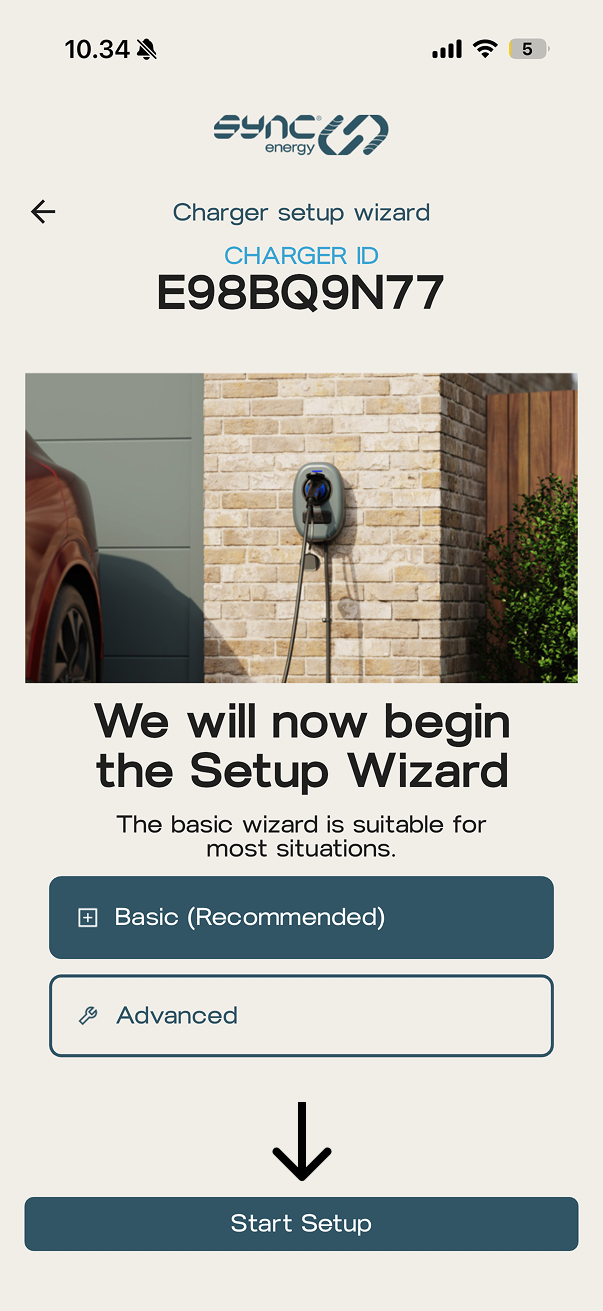
Setup Wizard
Select the Basic (Recommended) button and click Start Setup
4. Charger Management App and setup
Click Other Apps → Monta → Save and Continue
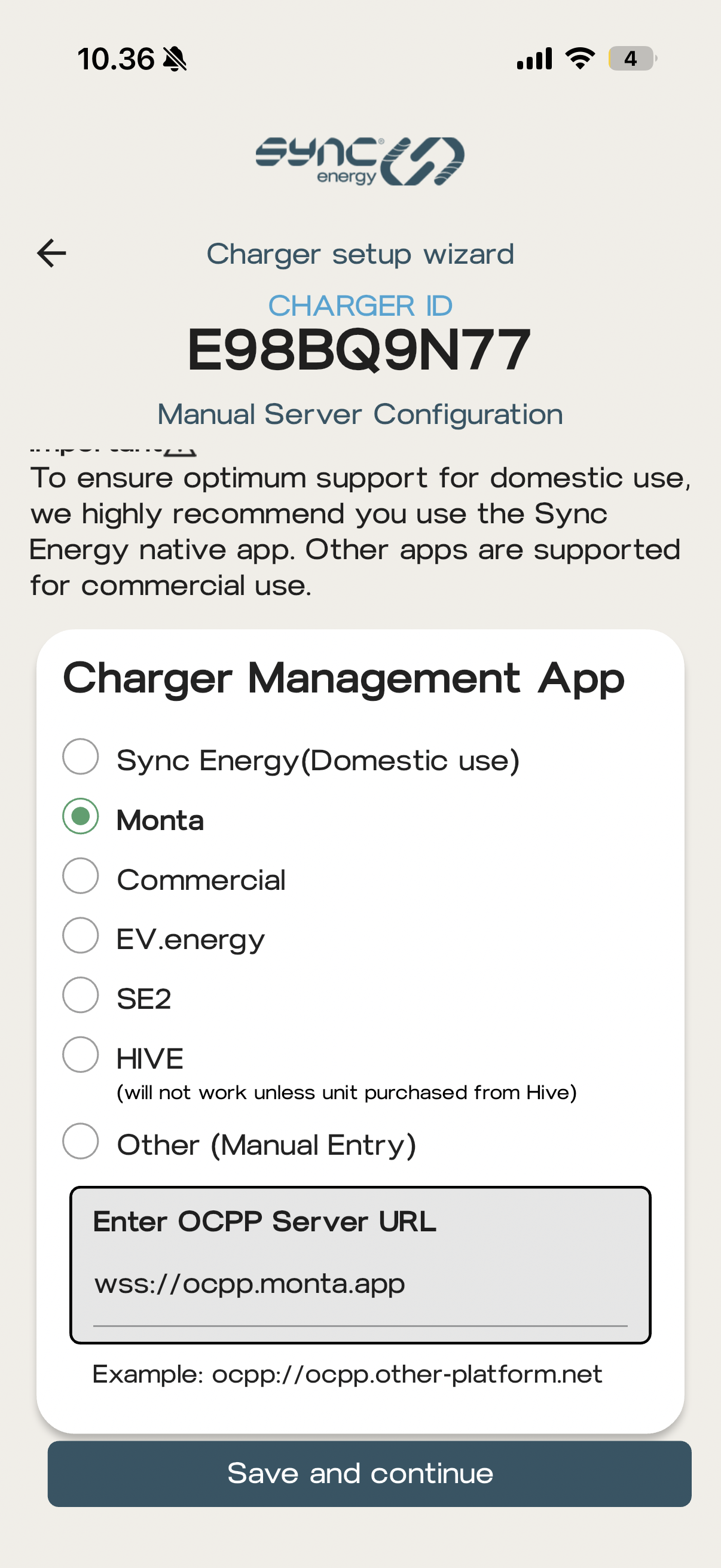
Now input the settings for your setup, connect your charge point to Wi-Fi and clickSave & Continue
5. The charge point will reboot
Once the setting has been saved the charge point will reboot. If all the details are correct and there is a connection to the Monta back office the charge indicator will go from permanently Yellow to permanently Blue to confirm the communication is successful.
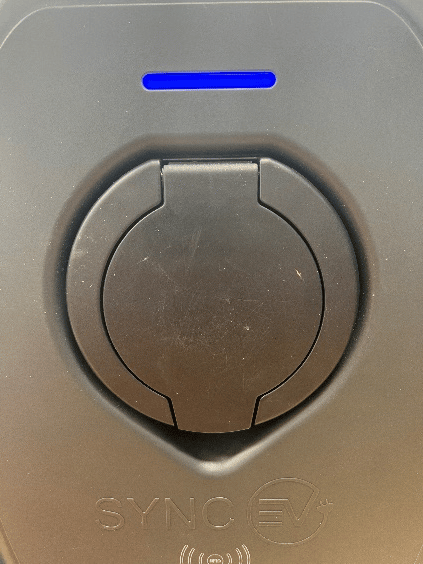
Light indicators
Flashing Blue = Preparing mode Green = Charging Red = Fault
6. Connecting the charge point to your Monta account
Now you need to add and connect your charge point to your Monta account.
You can do this through either Monta Charge or Monta Hub.